 CamWatch
 on Apple TV
Your cameras on the big screen, controlled with the Siri Remote you already have.
Setting up for the first time
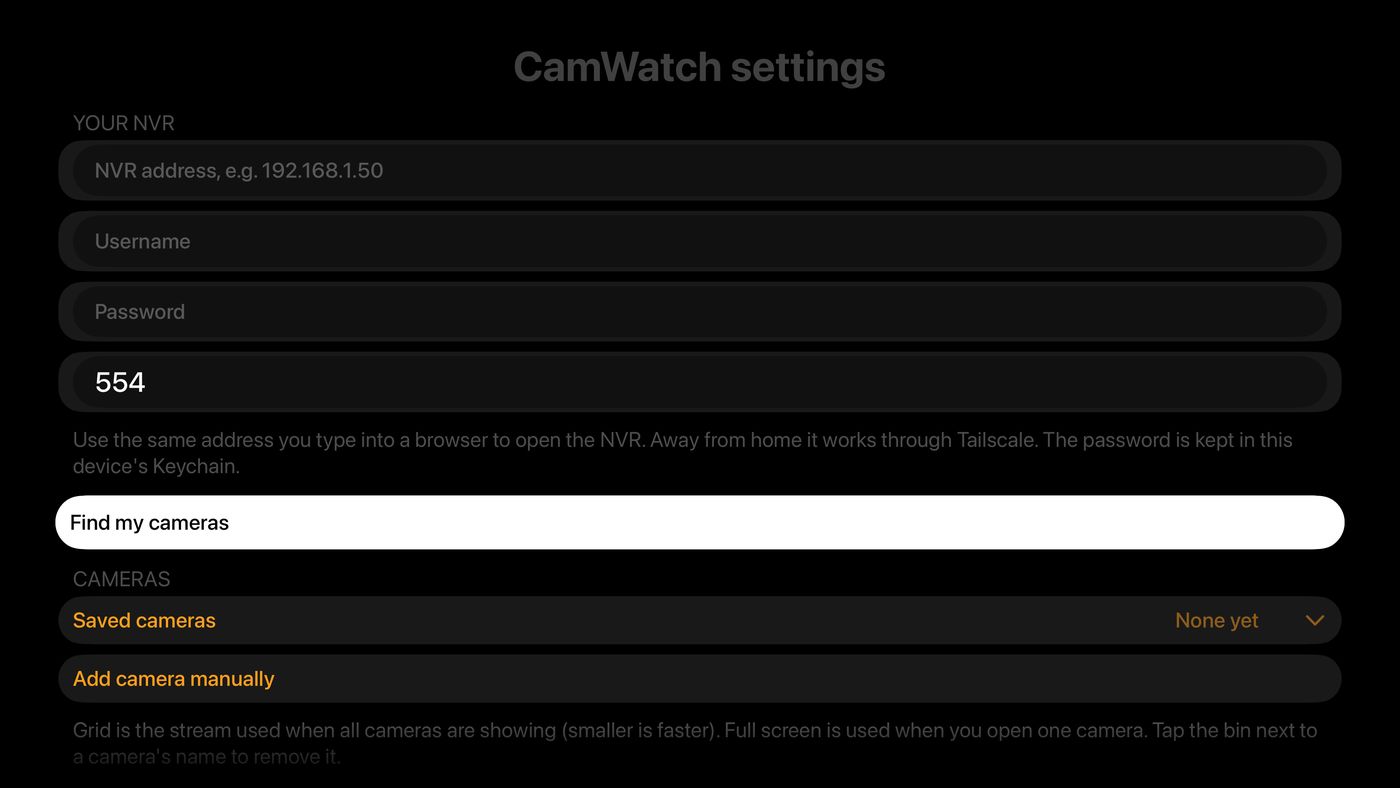
Your Apple TV needs to be on the same local network as your NVR. Typing is easiest with your iPhone: when a text box appears on the TV, your iPhone offers a keyboard.
- Open CamWatch and select Set up cameras.
- Under Your NVR, fill in the NVR's address (for example
192.168.1.50), its username and its password. Leave the video port as 554 unless your NVR uses a different one. - Select Find my cameras. It can take up to a minute.
- Select Save and watch.
Watching all your cameras
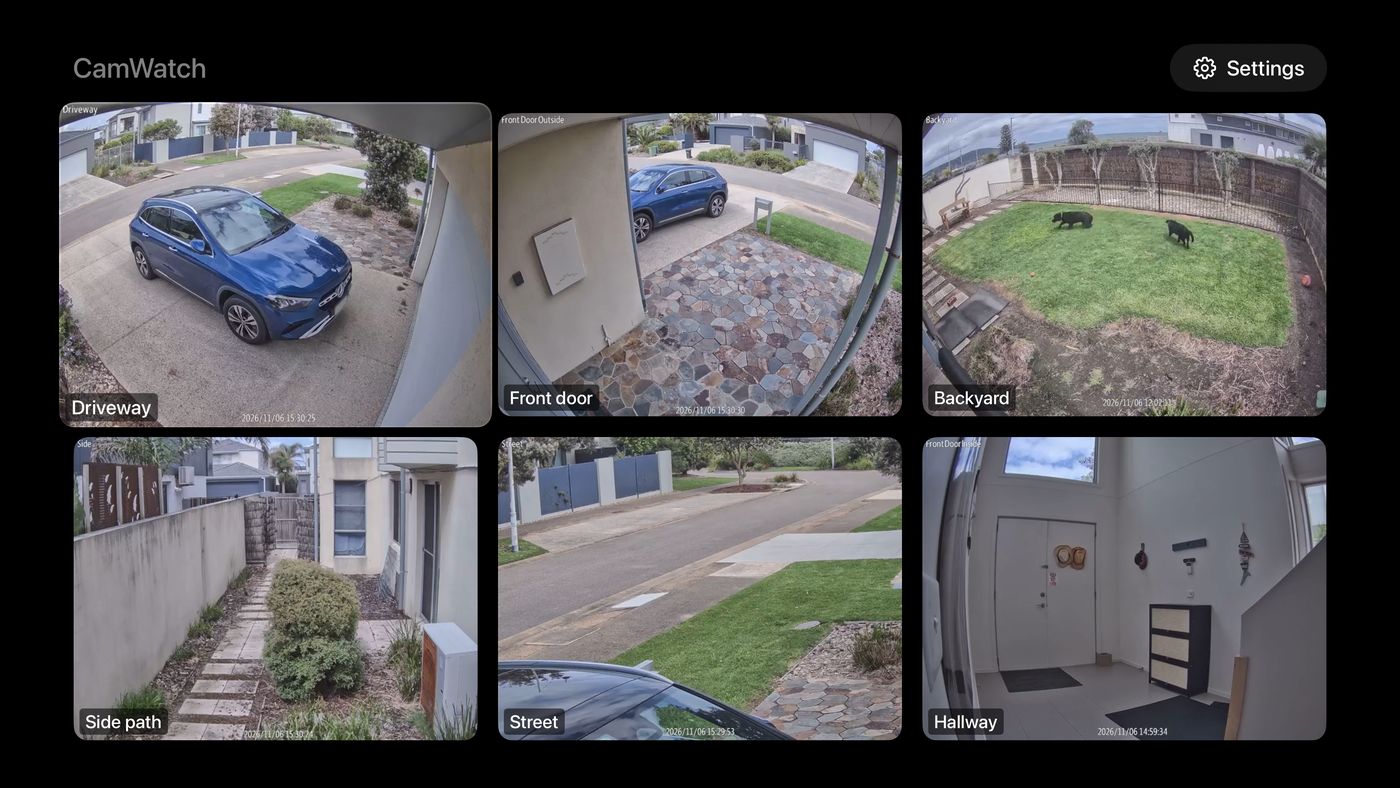
- The grid shows all your cameras at once.
- Move around the grid with the remote and click to open a camera full screen.
- Settings is at the top right of the grid.
One camera, full screen
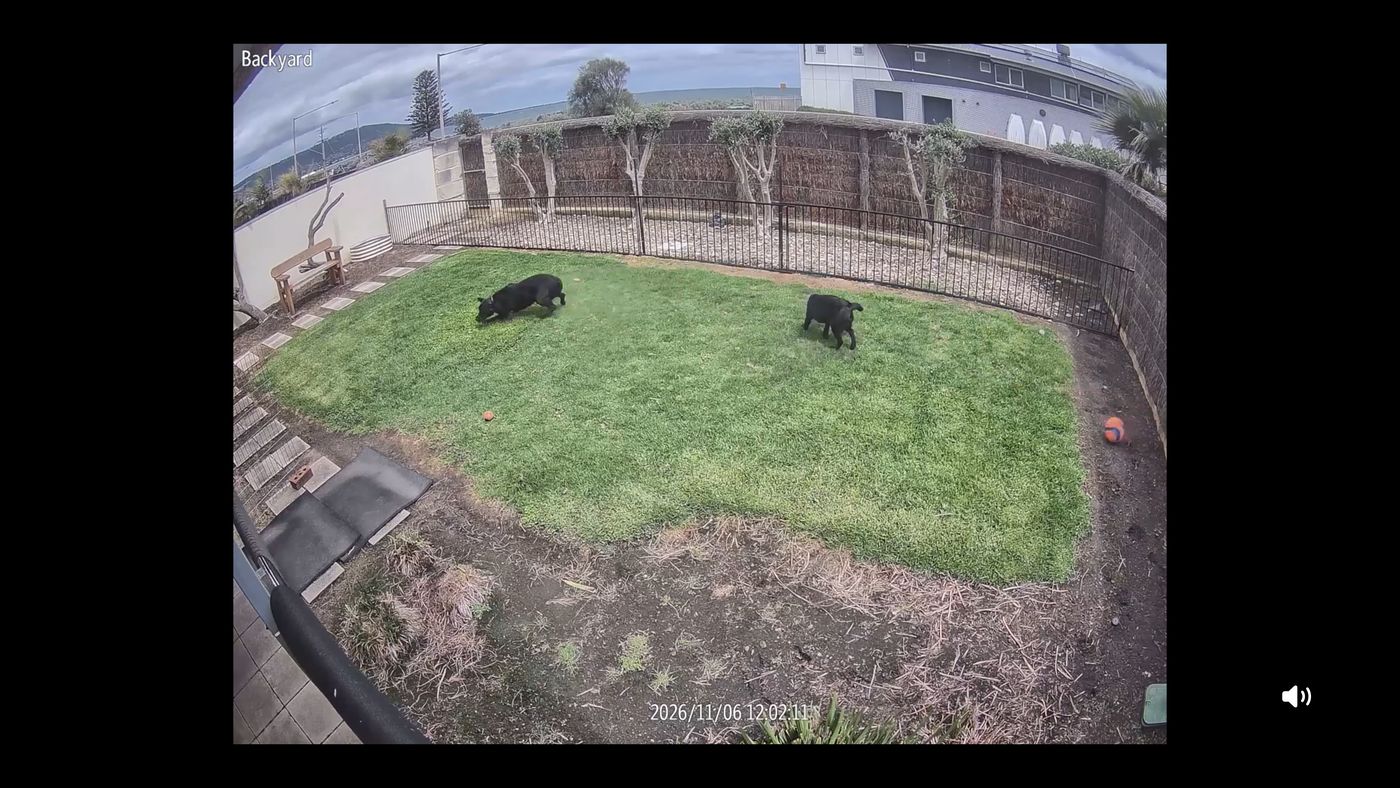
- Switch camera: swipe or press left and right.
- Sound: click the remote's touch surface or clickpad to turn sound on or off. Sound starts off each time.
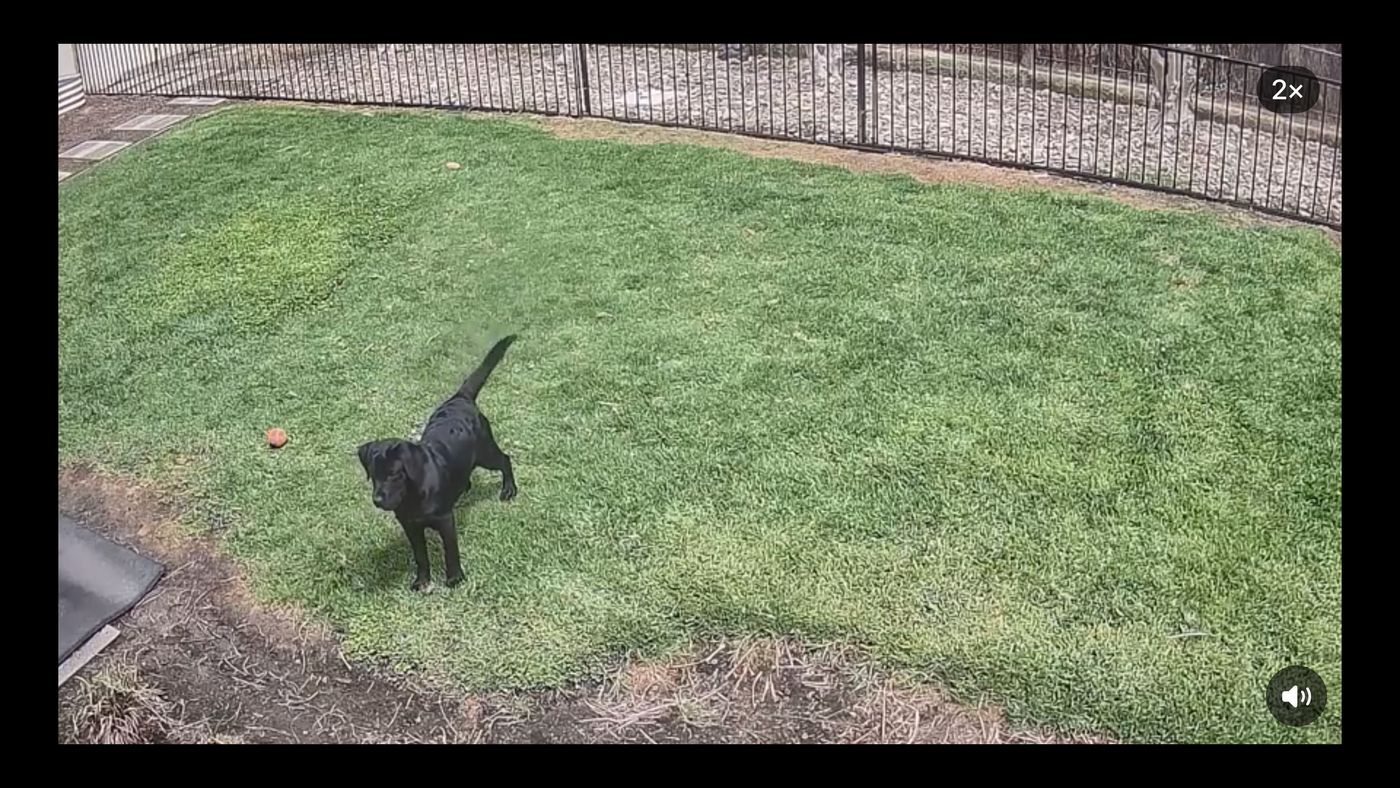
- Zoom: click and hold to zoom to 2×, hold again for 4×, and again to go back to the full picture. While zoomed, slide your finger to look around. On remotes with a clickpad ring, press up and down to zoom too.
- Picture in Picture: press Play/Pause to keep the camera in a corner while you watch something else.
- Back: press Back (or Menu). If you're zoomed in, the first press returns to the full picture.
Putting cameras in your order
- In the grid, highlight a camera, then click and hold.
- Choose Move.
- Use left, right, up and down to move it. The other cameras shuffle along in order.
- Click to drop it in place.
Renaming your cameras
CamWatch starts with the names your NVR uses. To give a camera a friendlier name, like "Front door":
- Open Settings (top right of the grid).
- Under Cameras, select Saved cameras to show the list.
- Select the name of the camera you want to change, and type the new name with the on-screen keyboard or your iPhone.
- Select Save and watch.
To remove a camera completely, select the bin next to its name, then Save and watch.
What's in Settings
- Your NVR
- The NVR's address, username, password and video port.
- Find my cameras
- Asks your NVR for its cameras again, for example after you add a camera.
- Saved cameras
- Your cameras, their names, and which picture size each one uses. Grid is the size used when all cameras are showing (smaller is faster); Full screen is used when you open one camera.
- Add camera manually
- For cameras Find my cameras can't see. You'll need the camera's RTSP link from your NVR's manual.
- Keep the screen on
- Stops the TV going to sleep while you're watching.
- Show camera names
- Shows or hides the name labels on the grid.